How to Organize Paper Files and Go Paperless
I opened my filing cabinet one morning and a folder literally fell apart in my hands. The papers inside were from 2019. Bank statements, utility bills, and insurance EOBs that I had been keeping “just in case” for five years. I had never once looked at any of them. That was the moment I decided to go paperless.
The average American household receives about 848 pieces of junk mail per year according to data from the U.S. Environmental Protection Agency. Add in bills, school forms, medical records, tax documents, and receipts, and paper becomes one of the most persistent sources of clutter in any home. Going paperless isn’t just about organization. It’s about reclaiming physical space and mental bandwidth. Here’s the step-by-step system I use to organize paper files and transition to a digital filing system.
Is Going Paperless at Home Actually Worth It?
Yes. Going paperless eliminates the need for filing cabinets, reduces time spent searching for documents, and protects important records from physical damage. The National Association of Professional Organizers found that the average person spends 4.3 hours per week looking for papers. A digital filing system with a search function reduces that to seconds. You also protect documents from water damage, fire, and simple misplacement.
Step 1: Gather All Your Paper in One Place
Before you can organize paper files, you need to see everything you’re dealing with. Collect every piece of paper from every location in your home:
- Filing cabinets and desk drawers
- Kitchen counter paper piles
- Nightstand stacks
- Junk drawers
- Shoe boxes of receipts
- Bags and folders stuffed in closets
Bring it all to one table. I carried seven different piles from five rooms to my dining table. The total stack was about 14 inches tall. Seeing it all together was overwhelming, but it was also motivating. I knew I didn’t need 90% of it.
If paper clutter is just one symptom of a bigger organization challenge, our guide on where to start decluttering can help you build momentum across your whole home.
Step 2: Sort Into Five Categories
Go through every piece of paper and sort it into one of these five piles:
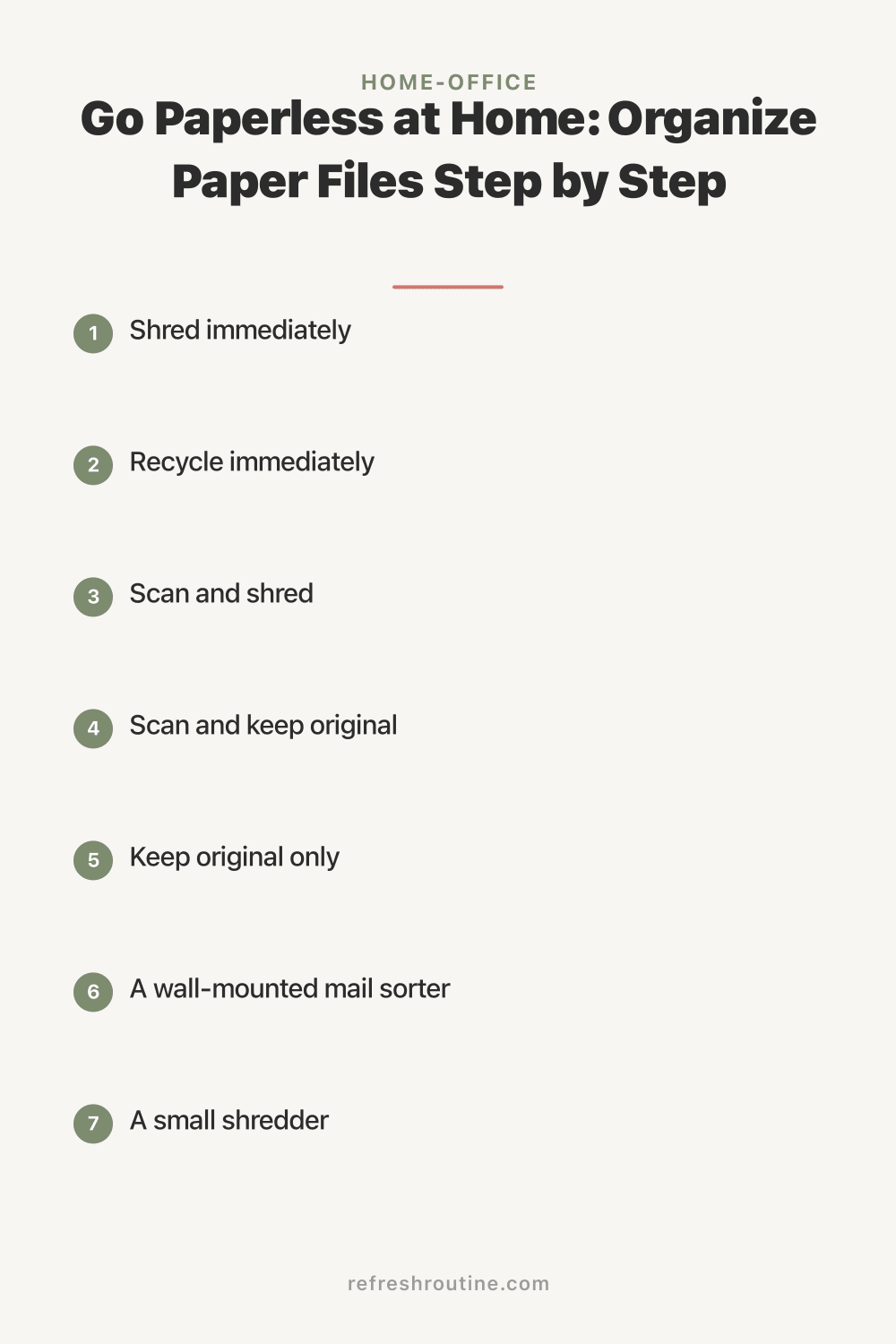
- Shred immediately. Junk mail with personal info, old bank statements (more than one year old), expired insurance cards, old pay stubs, pre-approved credit offers
- Recycle immediately. Junk mail without personal info, expired coupons, old magazines, old manuals for products you no longer own, duplicate copies
- Scan and shred. Receipts for returns or warranties, medical bills (paid), utility bills, insurance EOBs, kids’ school records, tax-supporting documents beyond the retention period
- Scan and keep original. Current year tax documents, active contracts, current insurance policies, loan documents, medical records you may need
- Keep original only. Birth certificates, Social Security cards, passports, marriage licenses, property deeds, car titles, wills, adoption papers
This sorting process took me about two hours for my 14-inch stack. By the end, my “shred” and “recycle” piles were by far the largest. About 70% of my paper had no reason to exist in my home anymore. That was both relieving and a little embarrassing.
Step 3: Set Up Your Digital Filing System
Before you start scanning, create a folder structure in your cloud storage. I use Google Drive, but this works with Dropbox, OneDrive, or iCloud. The structure matters because a messy digital system is just as frustrating as a messy paper one.
My folder structure:
- Financial
- Bank Statements
- Tax Returns (subfolder per year)
- Investment Statements
- Receipts (subfolder per year)
- Medical
- Insurance Cards and Policies
- Medical Records (subfolder per family member)
- Bills and EOBs
- Home
- Mortgage/Lease
- Insurance
- Warranties and Manuals
- Maintenance Records
- Kids
- School Records (subfolder per child)
- Activities and Memberships
- Medical (subfolder per child)
- Legal
- Identity Documents (scanned copies as backup)
- Contracts
- Vehicle Records
- Work
- Pay Stubs
- Benefits
- Performance Reviews
Name files consistently. I use the format: YYYY-MM-DD_Category_Description. For example: 2026-01-15_Medical_Annual-Checkup-Sarah. This format makes files sort chronologically and is easy to search. I learned this naming convention from my project management days, and it works just as well for home files as it did for corporate documents.
Step 4: Choose Your Scanning Method
You don’t need an expensive scanner to go paperless. Here are three options ranked by speed and quality:
Option 1: Phone scanning app (free, good quality) Adobe Scan and Microsoft Lens both use your phone’s camera to create searchable PDFs. They automatically straighten pages, enhance contrast, and crop edges. This is what I started with, and it handles 90% of home scanning needs. I scanned about 200 documents with my phone before deciding to upgrade.
Option 2: Portable document scanner ($80 to $150, fast) A dedicated scanner like the Fujitsu ScanSnap processes pages much faster than a phone. It feeds documents through automatically, scans both sides, and saves directly to your cloud folder. If you have more than a few hundred pages to process, this saves significant time.
Option 3: All-in-one printer/scanner ($60 to $100, multipurpose) If you still need to print occasionally, an all-in-one device handles scanning too. The flatbed scanner works well for odd-sized documents, photos, and thick items that won’t feed through a document scanner.
My recommendation: Start with your phone app. It costs nothing and lets you test the system before investing in hardware. I used Adobe Scan exclusively for six months before buying a portable scanner, and by then I knew the investment was worth it.
How Long Does It Take to Go Fully Paperless?
The initial sorting and scanning takes 4 to 8 hours depending on how much paper you have accumulated. I spread mine across two weekends, doing about 2 hours per session to avoid burnout. After the initial purge, maintaining a paperless system takes about 5 minutes per week. New mail gets sorted immediately: scan, shred, or recycle. According to a study by the Paperless Project, the average office worker uses 10,000 sheets of paper per year. Even at home, the volume is substantial, which is why the upfront time investment pays off quickly.
Step 5: Create a Paper Interception Station
Going paperless only works if you stop new paper from piling up. I set up a simple interception station by my front door where mail enters the house:
- A wall-mounted mail sorter with three slots: Action, Scan, Shred/Recycle
- A small shredder underneath (I use a $30 cross-cut model)
- A recycling bin next to the shredder
The daily paper routine takes 3 minutes:
- Bring in the mail
- Stand at the station and sort immediately. Do not carry unsorted mail deeper into the house
- Junk mail goes straight into recycling or shredder
- Bills and important documents go in the “Scan” slot
- Anything requiring a response goes in the “Action” slot
I process the “Scan” slot every Sunday morning while drinking coffee. It takes about 10 minutes to scan a week’s worth of documents, name the files, and shred the originals. The “Action” slot gets reviewed daily.
This interception habit is the most important part of the entire system. It took me about two weeks to build the habit, but once it clicked, paper stopped accumulating on my kitchen counter, my desk, and my nightstand. The difference in how my home looks and feels is remarkable.
Step 6: Handle the Paperwork You Must Keep
Some originals cannot be digitally replaced. These need a proper storage solution:
Fireproof document safe ($30 to $60): I keep a small fireproof safe in my closet for essential originals. It holds birth certificates, Social Security cards, passports, our will, car titles, and the deed to our house. Everything fits in a single letter-size safe.
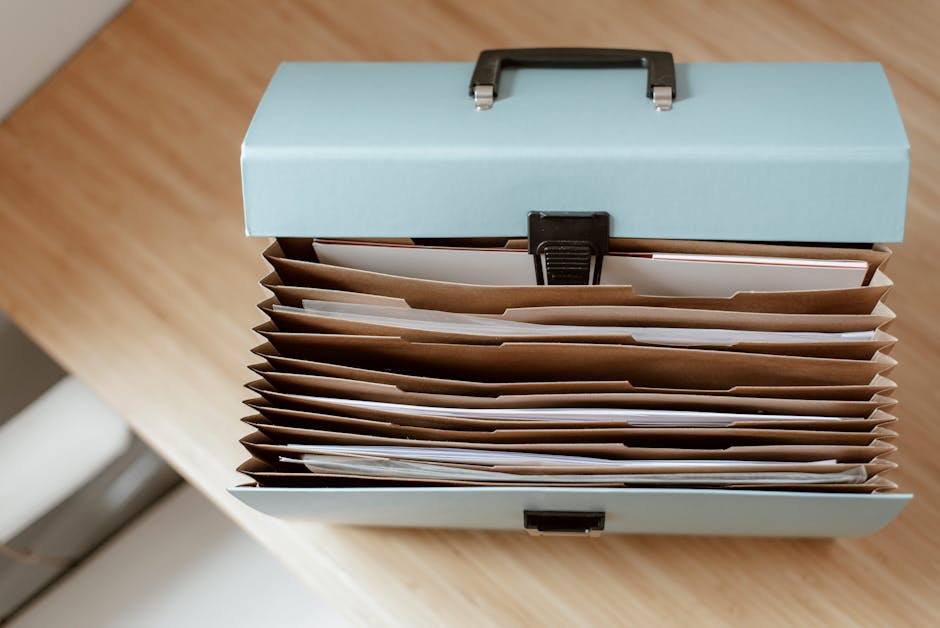
Active file folder ($10 to $15): For documents you reference regularly in their physical form, like current insurance cards, a slim accordion file with 6 to 8 pockets works well. Label pockets by category (medical, auto, home, school) and keep it in your desk drawer.
I went from a four-drawer filing cabinet to a fireproof safe and one accordion folder. The filing cabinet now lives in the garage, and I’m honestly considering getting rid of it entirely because I haven’t opened it in over a year.
Step 7: Opt Out of Paper Wherever Possible
Reduce incoming paper at the source:
- Switch all bills to paperless billing. Every bank, utility, and credit card company offers this. It took me one afternoon to switch 11 accounts
- Opt out of junk mail at DMAchoice.org ($4 for 10 years of reduced junk mail)
- Stop pre-approved credit offers at OptOutPrescreen.com (free, run by the major credit bureaus)
- Request digital receipts at stores that offer them
- Switch to digital school communications. Most schools now offer a parent portal for forms and announcements
After opting out, my daily mail dropped from 5 to 8 pieces down to 1 to 2 pieces. That alone cut my sorting time dramatically. The $4 I spent on DMAchoice was some of the best money I’ve ever spent on home organization.
Backing Up Your Digital Files
A digital filing system is only as good as its backup. If your cloud provider has an outage or you accidentally delete a folder, you need a safety net.
My backup strategy:
- Primary: Google Drive (automatic sync from phone and computer)
- Secondary: External hard drive backup once per month (takes 10 minutes)
- Critical documents: Also stored in the fireproof safe on a USB drive
The external hard drive backup is my “just in case” layer. I keep it simple with a monthly reminder on my calendar. Plug in the drive, drag the main folder over, and unplug. The USB drive in the fireproof safe holds only the most critical scans: identity documents, insurance policies, and our will. This approach connects to the same organization mindset I use across my whole home. Our room-by-room decluttering checklist applies the same principle of building simple systems that take minimal maintenance.
What I Wish I Knew About Going Paperless
These are lessons I learned the hard way during my transition to a paperless office.
Don’t try to scan everything in one weekend. I attempted this and burned out after three hours. The remaining paper sat in a box for another month before I touched it again. Spread the initial scanning across multiple short sessions. Two hours at a time was my sweet spot.
Name files properly from the start. My first batch of scanned documents had names like “Scan_001” through “Scan_047.” Finding anything in that mess was impossible. I had to rename all 47 files, which took longer than scanning them. Use descriptive names from the beginning.
You will feel nervous about shredding. The first time I shredded a bank statement after scanning it, I felt a pang of anxiety. What if I need it? What if the scan is corrupted? That feeling fades after about a week. I have never once needed a physical document that I had scanned and shredded. Not once in over a year.
Check your scan quality before shredding. Open each scanned PDF and make sure the text is legible and all pages are captured. I once shredded a two-page document after scanning only the first page. Now I always verify page count before the original goes into the shredder.
The interception station is everything. All of the scanning and organizing means nothing if you let new paper pile up. The 3-minute daily sort at my mail station is what keeps the system running. It’s the same principle behind a daily cleaning routine. Small daily habits prevent big weekend catch-up sessions.
Key Takeaway
Going paperless starts with gathering all your paper, sorting it into five categories (shred, recycle, scan and shred, scan and keep, keep original only), and setting up a simple cloud folder structure. Use your phone to scan documents for free, name files with dates and descriptions, and set up a mail interception station to stop new paper from accumulating. The initial process takes a few hours spread across a weekend or two, but maintaining the system takes only minutes per week. Start today by sorting one pile of paper using the five-category method.
For more workspace organization strategies, explore our complete home office guide or read about desk organization and cable management to complement your paperless setup.

Frequently Asked Questions
What papers should I keep as originals?
Keep originals of birth and death certificates, Social Security cards, marriage licenses, passports, car titles, property deeds, wills, and adoption papers. Store them in a fireproof safe or safety deposit box. Everything else can be scanned and stored digitally.
How long should I keep tax documents?
The IRS recommends keeping tax returns and supporting documents for at least three years from the filing date. Keep records for seven years if you filed a claim for a loss from worthless securities or bad debt. Employment tax records should be kept for four years after the tax is due or paid.
What is the best app for scanning paper documents?
Adobe Scan and Microsoft Lens are the most reliable free scanning apps for phones. Both use AI to straighten pages, enhance text, and save as searchable PDFs. Google Drive also has a built-in scan feature that saves directly to your cloud storage with no extra app needed.